Design Utility-Scale Solar
at GPU Speed.

Turn a solar site into a layout you can evaluate, revise and deliver—without leaving AutoCAD or Civil 3D (2027 and newer). Place solar racks to suit the terrain, plan the cables that connect the plant, and compare electrical design alternatives before committing to one. When the layout changes, see what it means for cable quantities, power losses and voltage drop.

Explore DC, LV & MV cable routing ↓
Instant User-Level Setup • No Admin Rights Required
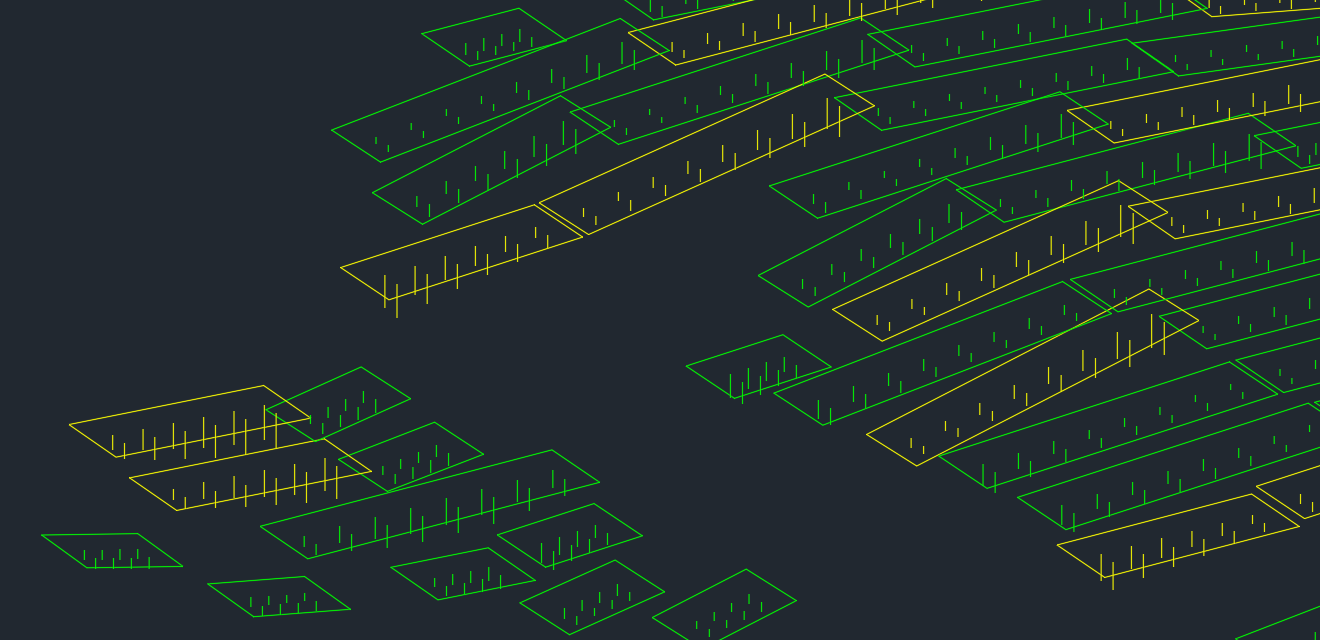
PV Solve Civil 3D plugin interface showing utility-scale solar rack placement

The Era of Flat Land is Over

As we run out of simple terrain, the new generation of non-conventional PV projects requires more than just layout tools—it demands proper civil analysis. PV Solve® is built directly on top of AutoCAD® and Civil 3D® to provide a developer and execution-grade design solution. Check terrain-related placement constraints early and reduce the risk of late-stage redesigns.

The Engineering Advantage

Resolve the decisions that drive layout quality, cable cost and electrical performance.

Design Decision Engineering Challenge PV Solve® Approach
Early-Stage Site Studies Evaluate a preliminary rack layout before a LiDAR topographic survey is available. Use Copernicus digital elevation models for early-stage terrain assessment and rack placement, then reassess the layout with survey-grade terrain when available.
Terrain-Aware Layout Fit racks to complex terrain without leaving slope, clearance and pile constraints until later. GPU-accelerated placement checks rack and pile geometry against configured limits, using 0.2m terrain data when a suitable LiDAR survey is available—read as a raster in AutoCAD or a TIN surface in Civil 3D.
DC Allocation & MPPT Grouping Coordinate shading compatibility, cable-length matching and inverter locations without repairing schedules manually. Google OR-Tools solves the field-wide string and MPPT allocation together with inverter-row selection, within configured constraints.
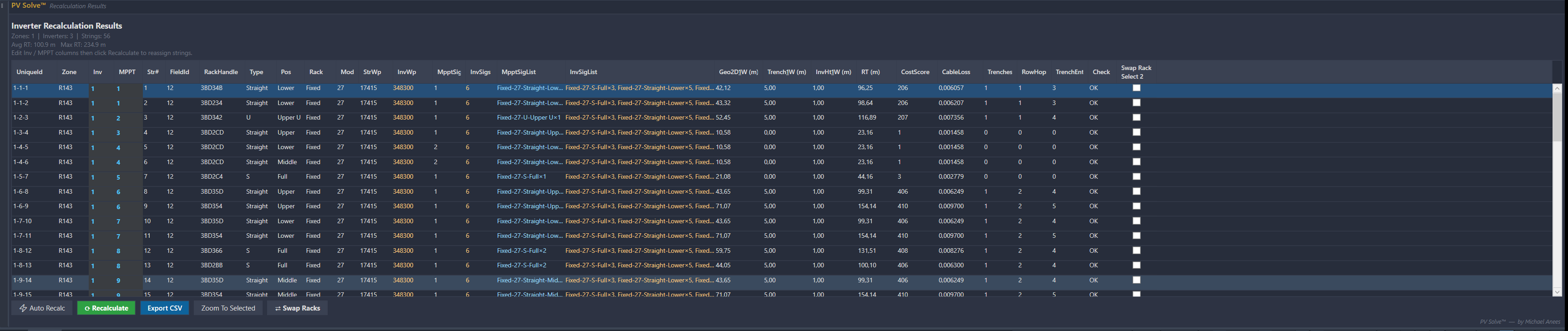
DC Design Revisions Understand the cable and loss impact when an inverter moves or string assignments change. Move inverter boxes or edit inverter/MPPT assignments, then recalculate routed lengths and losses without rebuilding the schedule by hand.
LV Connections & Loading Connect inverters through usable trenches while keeping transformer loading and cable performance visible. Assign and balance transformer inputs, flag capacity and connectivity issues, and calculate terrain-aware route lengths, resistive losses and voltage drop.
MV Circuit & Cable Design Choose circuit groupings and cable sizes when voltage drop, ampacity and shared-trench derating affect one another. GPU-powered combinatorial evaluation presents alternatives that satisfy configured checks, with circuit counts, 3D cable quantities, losses and voltage drop for comparison.
MV Corridor Changes Reassess the collection network when a late change restricts the permitted cable paths. Update the corridor network and re-solve to compare feasible circuit and cable alternatives, rather than reconstructing each arrangement manually.
Design Review & Handover Carry the selected design into review with inspectable routes, quantities and electrical results. Draw cable solutions in CAD, export electrical result tables, and deliver PVsyst geometry or the selected MV solution as GeoPackage through the relevant workflows.

Key Benefits

Engineering Precision Meets Commercial Speed.

Spend Less Time on Repetitive Design Work

Use GPU-accelerated placement and solver-based electrical allocation to evaluate design alternatives, reducing the manual work of positioning racks and reassigning strings.

Make Better Cable Investment Decisions

A shorter route is not always the better electrical design. Compare cable quantities, power losses and voltage drop—and explore different inverter positions and medium-voltage circuit arrangements before choosing where to invest.

Identify Terrain Constraints Earlier

Check rack and pile geometry against the terrain model and your configured limits before detailing the layout. Identify potential slope and pile-length issues early, with results dependent on the quality and resolution of the source terrain data.

Maximize Energy Yield

Reduce mismatch at the design stage. Group strings with similar shading profiles on the same MPPT and control cable-length differences as part of the field-wide allocation—not as an Excel cleanup exercise after export.

Solve the Electrical Design. Not Just the Drawing.

Field-wide DC allocation, connected LV routing and combinatorial MV design—with the cable quantities, losses and voltage-drop results to compare your options.

DC: Solve the Field, Not One String at a Time

Stop repairing MPPT schedules with Excel macros after allocation. PV Solve uses Google OR-Tools to solve an entire field together—coordinating string assignments, MPPT grouping and inverter-row selection instead of locking in first-come, first-served decisions.

  • Build MPPT schedules around electrical compatibility. Keep strings with similar shading conditions together—including top, middle, lower, U and Z profiles—while keeping cable lengths similar within your configured limits.
  • Choose assignments and inverter rows together. Let the solver evaluate which inverter and MPPT each string should connect to, and which row each inverter should occupy, to reduce cable losses while respecting capacity and routing constraints.
  • Keep control when the design changes. Move an inverter or edit string-to-inverter/MPPT assignments, then recalculate routes, lengths and losses. Review the revised results and export schedules to Excel or CSV.

LV: Connect Inverters Without the Guesswork

Develop inverter-to-transformer connections against the actual trench network, with transformer loading, terrain-aware cable quantities and resistive losses in one workflow.

  • Know what each transformer is carrying. Assign inverters, distribute their load between transformer inputs, and spot capacity or connection-count warnings.
  • Measure routes you can actually use. Follow the shortest connected path through your drawn trenches, account for terrain and installation allowances, and identify inverters that cannot reach the network.
  • Understand your cable choices. Calculate current, resistive power loss and voltage drop from your conductor and operating inputs. Show the routes in the drawing and export the results for review.

LV estimates use a balanced three-phase resistive model; they do not replace thermal, ampacity or protection studies.

MV: Compare Compliant Designs, Not Just Routes

Should the transformer beside the substation get its own feeder or join another circuit? Sharing may save a feeder but push a distant station over its voltage-drop limit. Adding a circuit changes trench occupancy and cable derating. PV Solve evaluates those interdependent decisions together.

  • Define the design problem. Supply permitted cable-path centerlines and transformer locations and power, then set the cable catalogue, electrical limits and installation assumptions.
  • Explore thousands of possibilities. The GPU-powered engine evaluates tens of thousands of combinations of circuit groupings, routes and cable choices, checking voltage drop and current-carrying capacity, including derating where cables share trenches.
  • Choose between compliant alternatives. Compare circuit counts, 3D cable lengths by size and circuit, total losses and voltage drop to find the balance of cost, performance and constructability that fits your project. Draw your chosen solution in CAD and export tables to Excel or the final solution to GeoPackage.
  • Respond to change with evidence. If an allowed cable corridor changes, re-solve the network and compare the new alternatives instead of manually rebuilding each possible arrangement.

Where feasible alternatives exist, solutions pass the checks against your configured inputs and limits. Project-specific engineering approval remains essential.

After changing the drawing or inputs, recalculate or re-solve to refresh results. Terrain-based cable lengths use raster data in AutoCAD, with Civil 3D surface support also available in Civil 3D.

How It Works

From site inputs to DC, LV and MV design, review and export in seven steps.

  1. Data Ingestion & Terrain Modeling

    Load field boundaries from shapefiles or drawing objects. Start preliminary terrain assessment and rack placement with Copernicus DEMs before a survey is available. For detailed placement, use LiDAR survey data at 0.2m resolution where available, read as a raster file in AutoCAD or a TIN surface in the Civil 3D flavor.

    Show detailsHide details: Terrain data and Copernicus workflow

    Copernicus 30m DEM supports preliminary site and layout studies; it does not resolve local terrain variations needed for detailed pile and clearance checks. When a LiDAR topographic survey at 0.2m resolution is available, PV Solve can use that detailed terrain for rack and pile placement checks. Reassess the preliminary layout against the survey data before progressing the design. Terrain resolution and accuracy depend on the source data, not just the sampling-grid spacing.

    Watch: Early-Stage Terrain Analysis with Copernicus 30m DEM →
  2. GPU-Accelerated Rack Placement

    The engine uses "Aggressive Dynamic Placement" to micro-step along rows. Configure your constraints across three intuitive tabs, then visualize the results instantly.

    Show detailsHide details: Rack placement
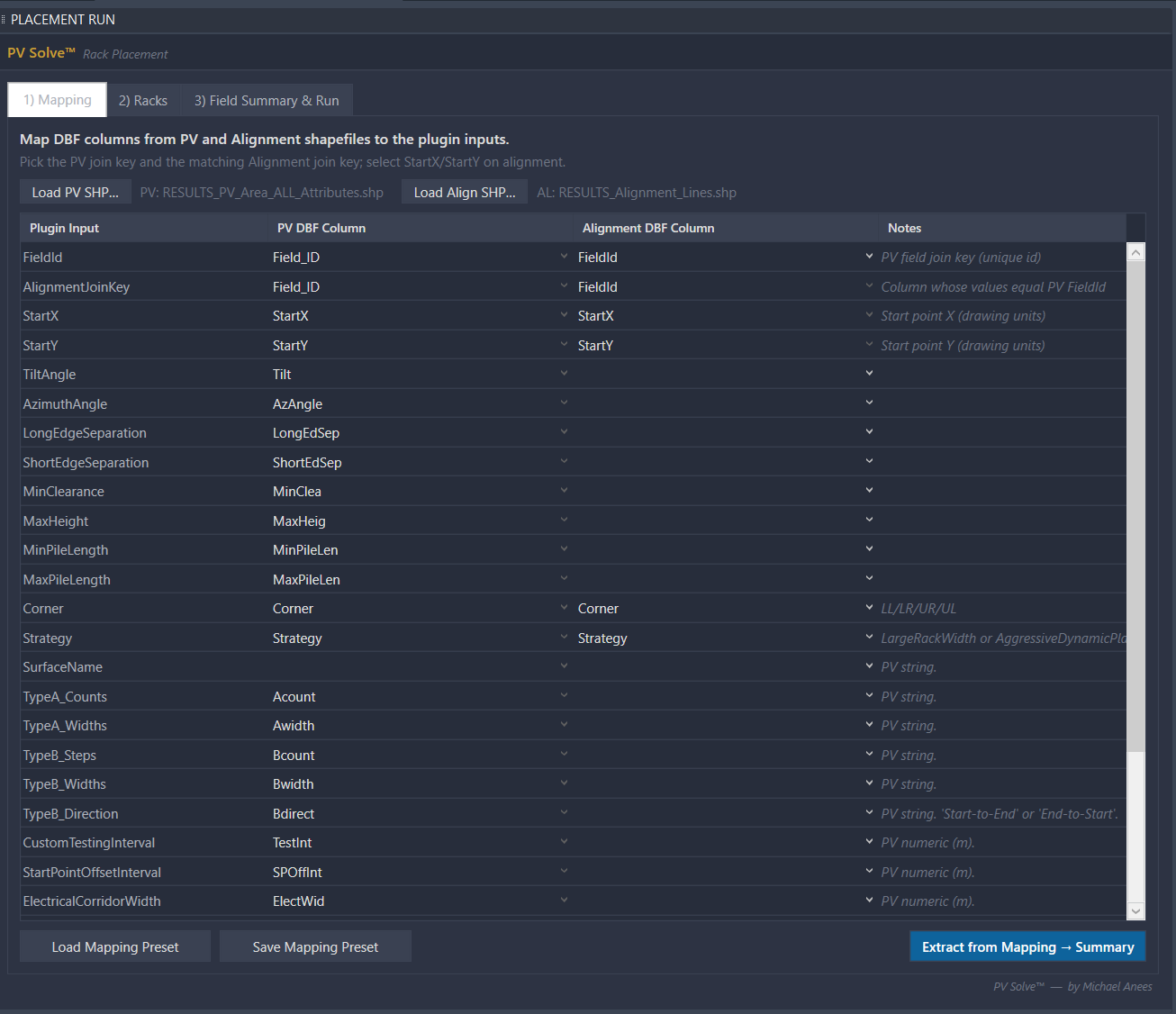
    PV Solve UI - Import PV field shapefiles or use drawing objects as fields

    Use fields and alignment line objects in your drawing or simply import them as shapefiles. Join them with common field IDs. If rack and field settings are available in your shapefiles, map the parameters to the fields and start your placement faster

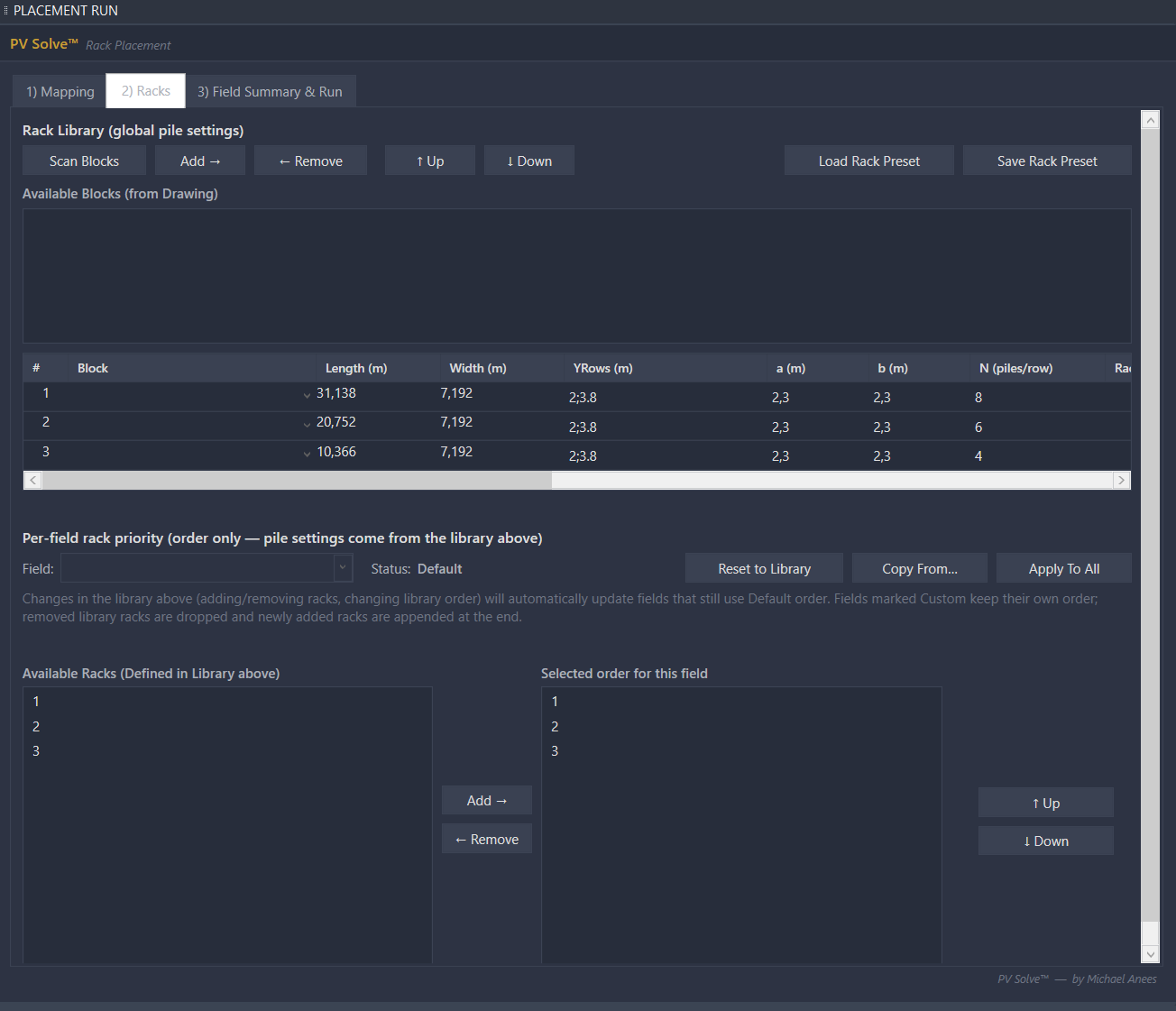
    PV Solve UI - Rack placement constraints

    Read rack blocks in the drawing, create new ones or import predefined racks. Determine their placement priority per field and on to the next step

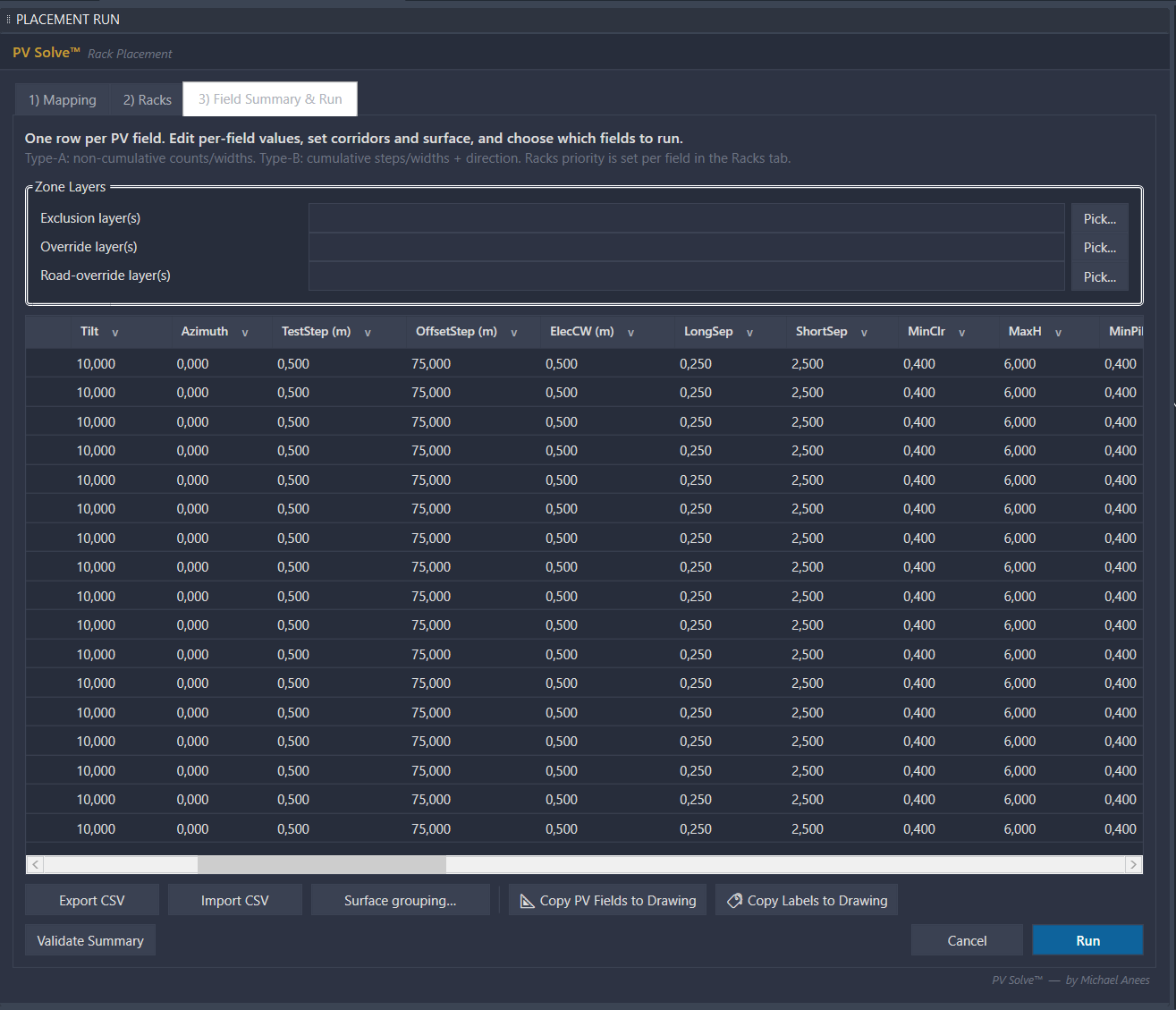
    PV Solve UI - Field settings spreadsheet

    Configure your field settings (tilt, azimuth, aisle width, etc.) in a spreadsheet format. No more laggy or buggy UI. Spreadsheets are way to go in a utility project with multiple fields. You can also export the settings to an Excel file, edit them and reimport them again. This is the professional solution you were looking for.

    Generated layout on terrain with 0.2m resolution topography model

    Evaluate placement across the rack footprint, not just its edges, using your terrain model and configured constraints. Fine-resolution terrain data helps reveal local variations; placement results depend on source-data quality and the selected settings.

  3. Network Visualization & Routing Control

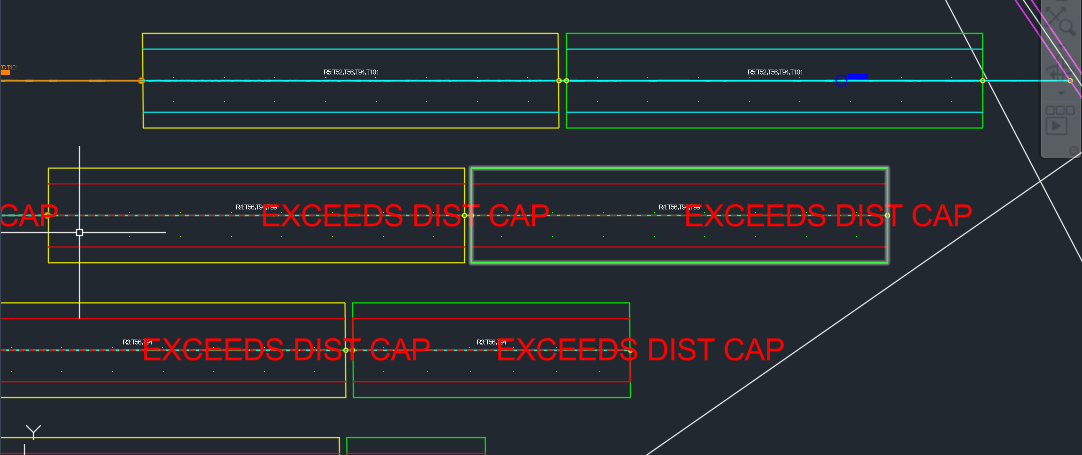
    Run the Network Debugger to see the site's connectivity. Spot disconnected racks and draw custom "Routing Trenches" to bridge gaps before solving.

    Show detailsHide details: Network visualization
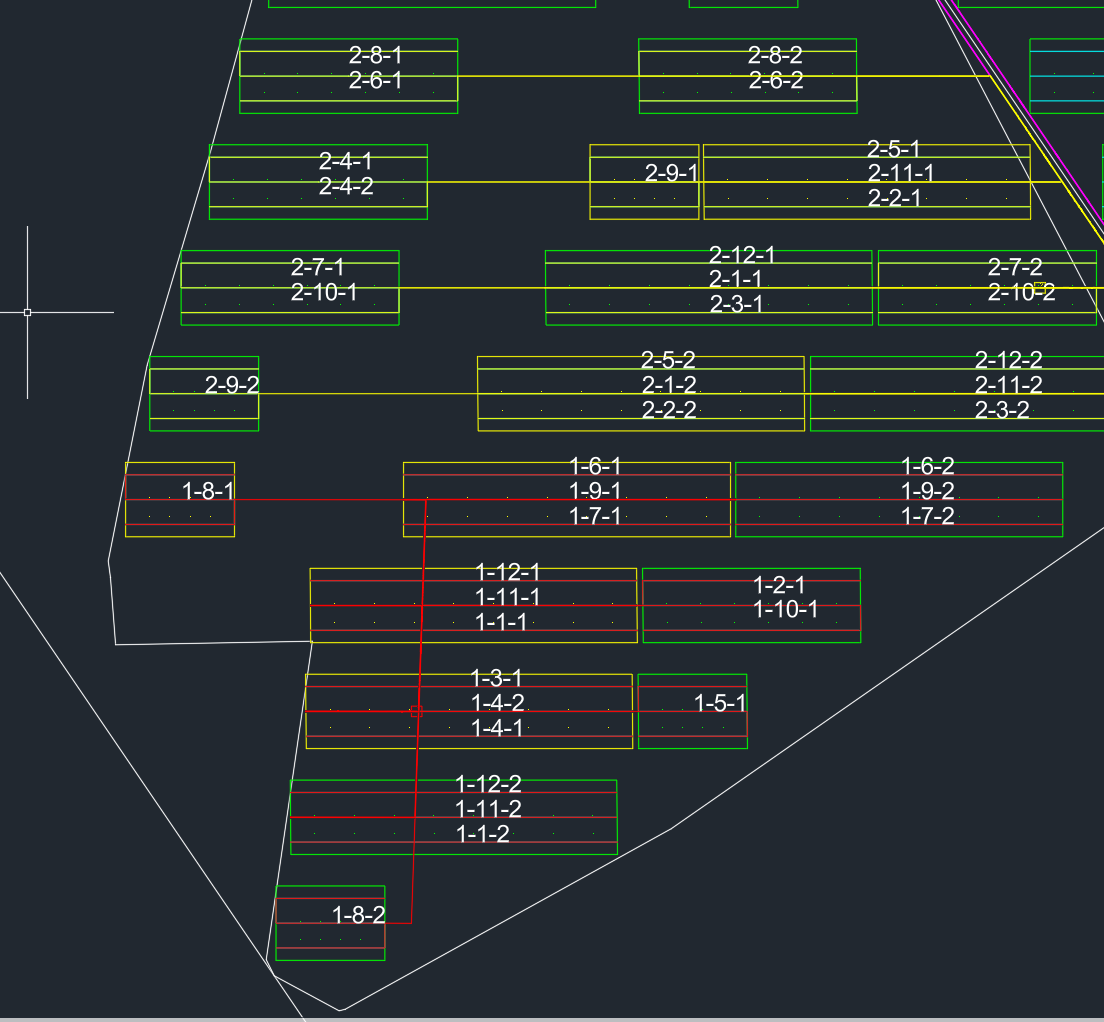
    Site connectivity graph and custom routing trenches

    Connectivity Graph

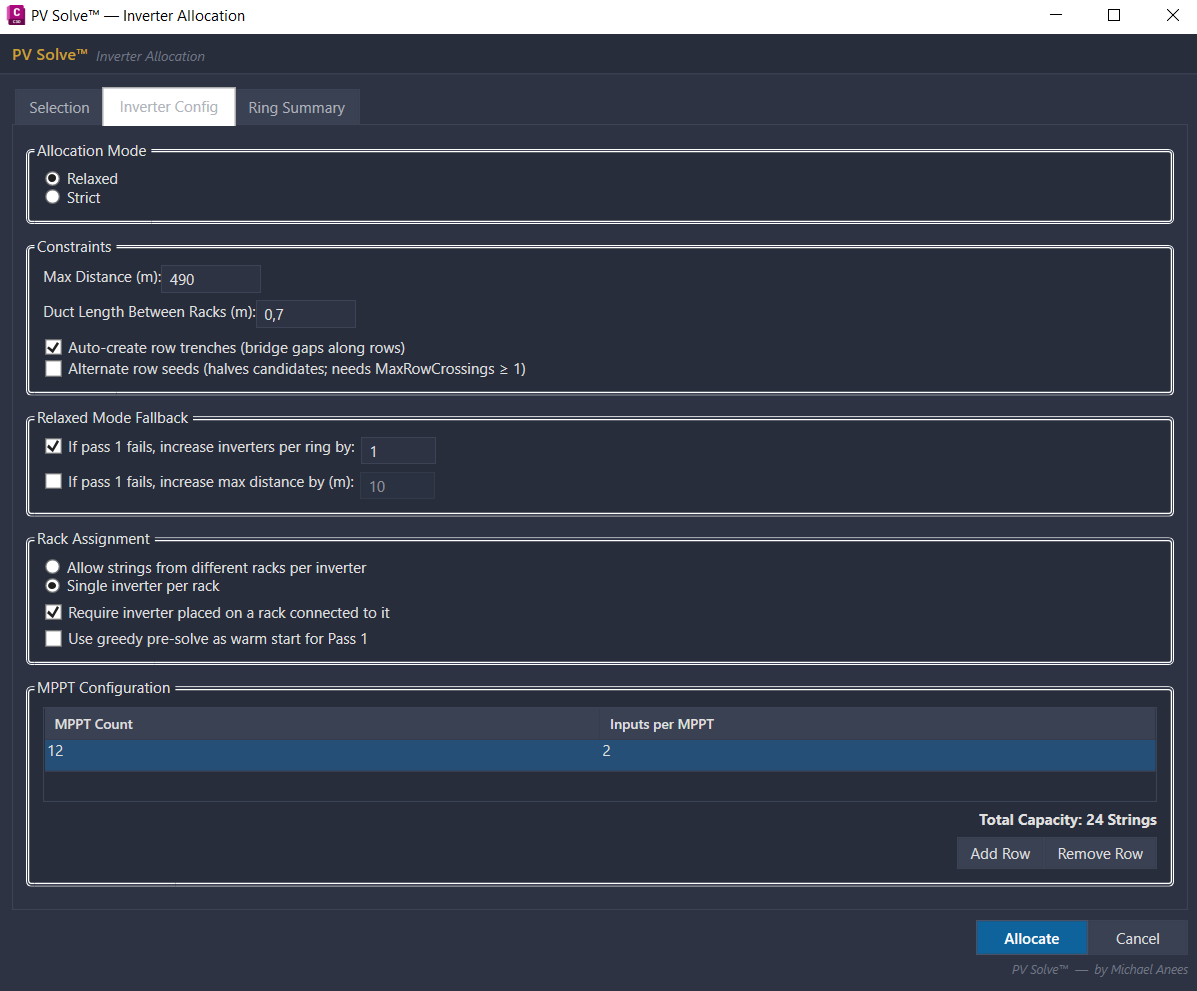
    Inverter configuration and allocation settings UI

    Inverter configuration

  4. DC Allocation & Design Recalculation

    Google OR-Tools solves the field-wide string-to-inverter and MPPT allocation, grouping compatible shading profiles, controlling cable-length differences and selecting inverter rows to reduce losses within your configured constraints. After allocation, move inverter boxes or edit assignments and recalculate routes, lengths and losses—without rebuilding the schedule by hand.

    Show detailsHide details: DC allocation
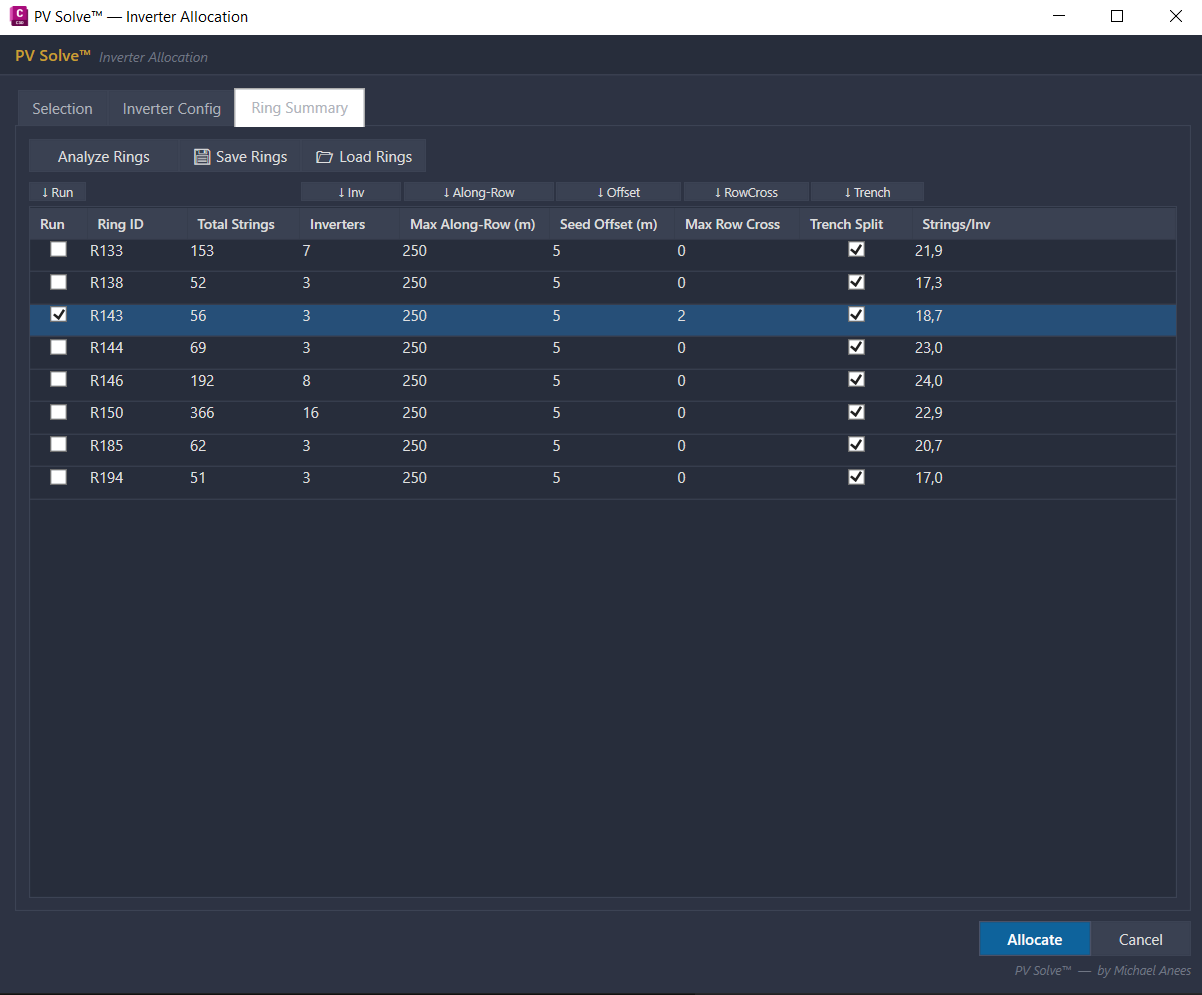
    String to inverter allocation settings

    String-inverter allocation settings

    Optimized string layout with minimal cable length

    Optimized String Layout

  5. LV Assignment & Trench Routing

    Load the transformer settings and terrain shared with the MV workflow, then assign inverters and balance transformer inputs. Route connections through your drawn trenches, review capacity and connectivity warnings, and calculate terrain-aware lengths, resistive losses and voltage drop using your cable and operating inputs.

  6. MV Alternatives & Solution Selection

    Define permitted cable corridors, transformer locations and power, collectors and the substation. Set your cable catalogue and electrical limits, then let the GPU-powered engine evaluate circuit groupings, routes and cable sizes together. Compare alternatives that pass the configured voltage-drop, ampacity and derating checks by circuit count, 3D cable quantities and losses. Select the solution that best balances cost, performance and constructability; re-solve when corridors or design inputs change.

  7. Review, Draw & Export

    Inspect the selected cable routes in CAD and export electrical result tables for review. Export the selected MV solution to GeoPackage, and rack geometry to .PVC or .DAE for PVsyst. When the design changes, return to the relevant workflow to recalculate or re-solve before updating your deliverables.

Engineering Tools, Clear Pricing

Terrain-aware layout and solver-based electrical design in one AutoCAD and Civil 3D plugin, with straightforward annual pricing.

Annual License

€3,000

per user / year

Download AutoCAD Trial (.ZIP) Download Civil 3D Trial (.ZIP)
No admin credentials required for installation